
XGRIDS Gaussian Splats Now Work With SketchUp’s Splat Extension
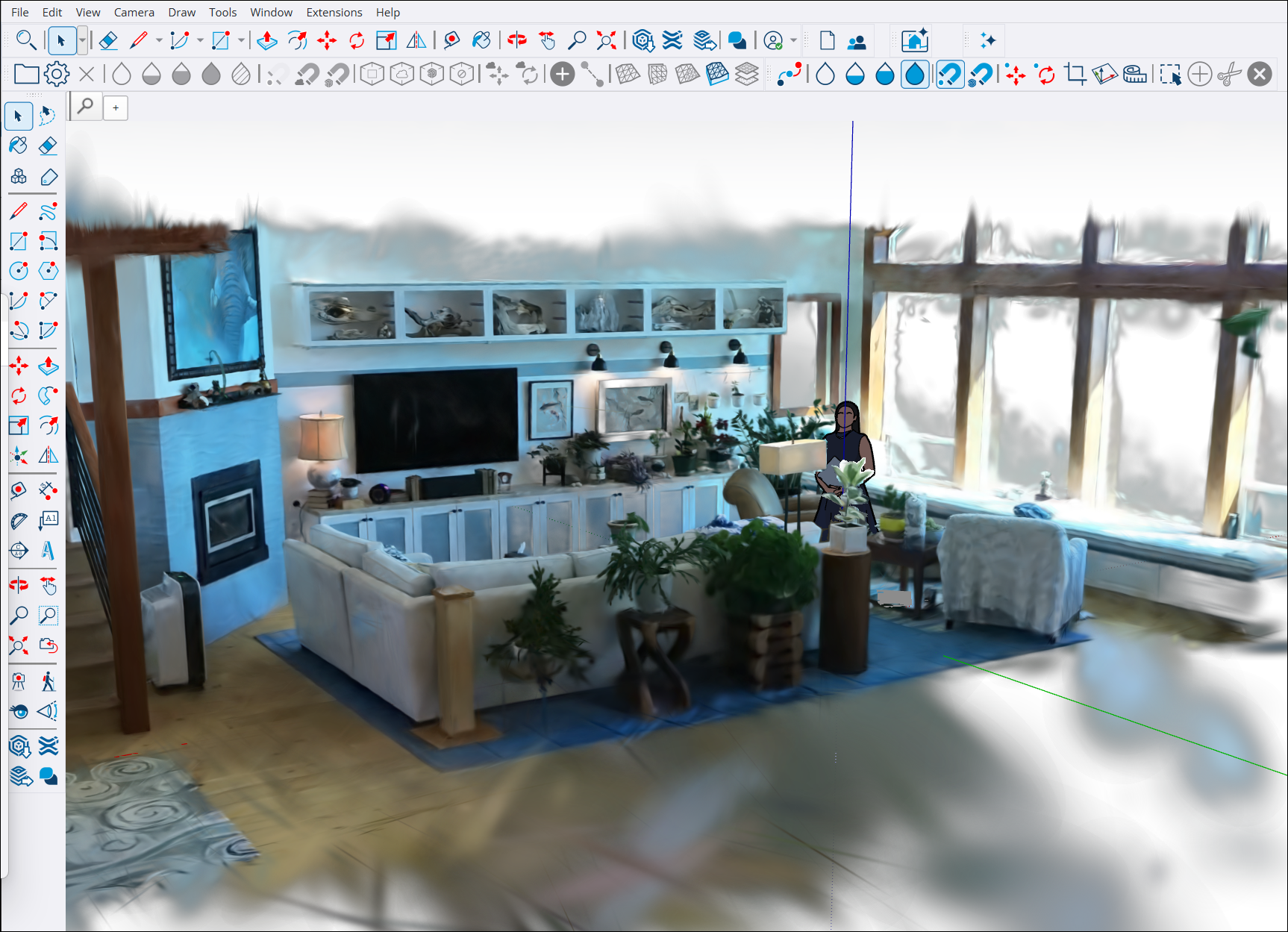
The Gaussian Splats extension brings captured spaces into the modeling window, where designers can snap new geometry to the scan and compare it with their plans.

XGRIDS says its LCC and LCC2 scan formats work with SketchUp’s Gaussian Splats extension (opens in a new tab), letting designers bring captured real-world spaces into the same window as their 3D models.
The practical payoff is designing with the existing space in view. A scanned room or building can provide the visual reference for new SketchUp geometry, rather than sitting in a separate viewer.
Working With Scans in SketchUp
A Gaussian splat represents a captured scene using many small, overlapping splats that reproduce its appearance from different viewpoints. In SketchUp, that scene sits alongside the geometry you create.
SketchUp’s modeling tools for splats (opens in a new tab) let you choose whether drawing tools snap to the scan or prioritize your SketchUp model. You can also crop the scan, move and rotate it, align it with the model axes, and set its scale using a known distance.
The extension offers different display modes for different jobs. Rendering Mode emphasizes visual quality, while Modeling Mode reveals individual splats for picking and snapping. Point Cloud Mode provides a lighter view for navigating larger scenes.
What You Need to Use It
The official setup guide (opens in a new tab) requires Windows, SketchUp 2024 or newer, and an active Pro, Pro Scan, Pro Advanced Workflows, or Studio subscription. macOS is not supported. SketchUp says the extension is included at no additional cost while it remains in the Labs program.
One detail to keep in mind when sharing a design is that splat changes are saved separately (opens in a new tab) from standard SketchUp geometry. Save them through the Splat Manager and send the linked .sklat file along with the .skp model so collaborators receive both.
To try the workflow, install Gaussian Splats from SketchUp’s Extension Warehouse (opens in a new tab), restart SketchUp, and open the Splat Manager. Its Load Sample option lets you explore a captured scene before importing one of your own.
More from Capture & Create.
Browse all stories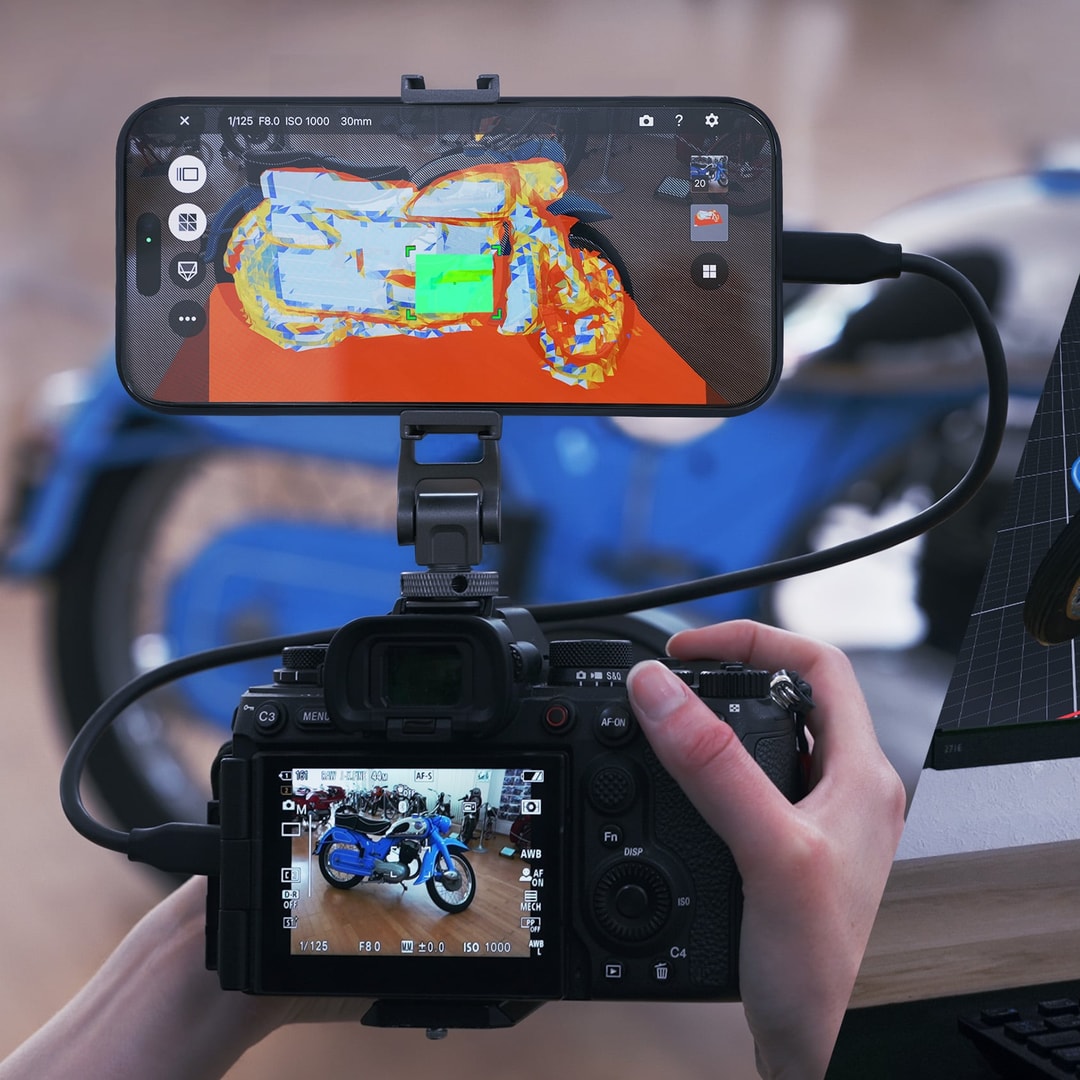
3D Capture · 3 min read
Sony Opens XYN 3D Capture to Individual Creators, With a Free Plan
An iPhone guides your Sony camera as you capture objects and places. Cloud builds use paid tokens, including on the free plan.
Gaussian splats · 3 min read
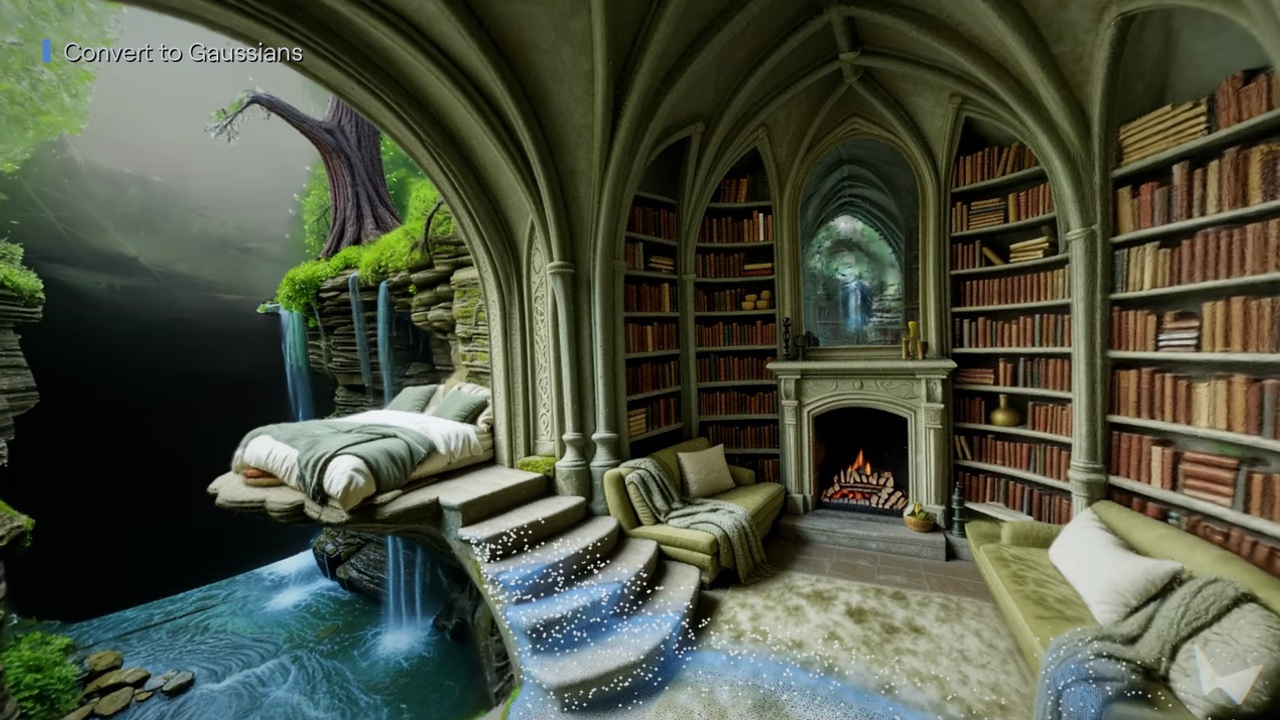
World Labs Opens Atlas Gaussian Splat Creation in Marble
Creators can turn Atlas views into downloadable 3D scenes, with a new beta API for building splats from generated views or photographs.

AI World Models · 2 min read
Google Unveils Genie 4, Its Most Realistic AI World Model Yet
Genie 4 combines Gemini’s reasoning with more realistic physics, natural movement, and generated sound and dialogue. Trusted testers are getting access first.