
Tripo Adds 3D Animation From Text Prompts
Creators can generate short actions from prompts and combine up to five motion segments, with skeleton options for Unreal Engine, Unity, and avatar workflows.
Tripo (opens in a new tab), an AI tool for making 3D models, has rebuilt its rigging and animation workflow with five skeleton presets and the ability to generate character motion from a written prompt.
The update targets the step between making a character and using it in a game or animation. Instead of adapting the same skeleton after every export, creators can choose one that matches their next tool.
Rigging
Rigging adds the digital bones that let a 3D character bend and move. Tripo says its new humanoid rigging algorithm improves how the model follows those bones around key joints and adds support for hand bones.
The five presets are UE5 Mannequin, Mixamo, VRM 1.0, Unity Humanoid, and ActorCore. Choosing the target skeleton before auto-rigging is designed to reduce manual remapping, the work of matching one skeleton’s bones to another.
Animation
Text to Motion generates a character animation lasting one to ten seconds from a description of the action. Multi-stage Motion can combine up to five motion segments into a longer sequence with several actions.
Tripo already offered auto-rigging and a library of preset motions. Its earlier update (opens in a new tab) expanded that library and added a way to export a single pose. This announcement adds written motion prompts and a choice of destination skeletons to that workflow.
Our test
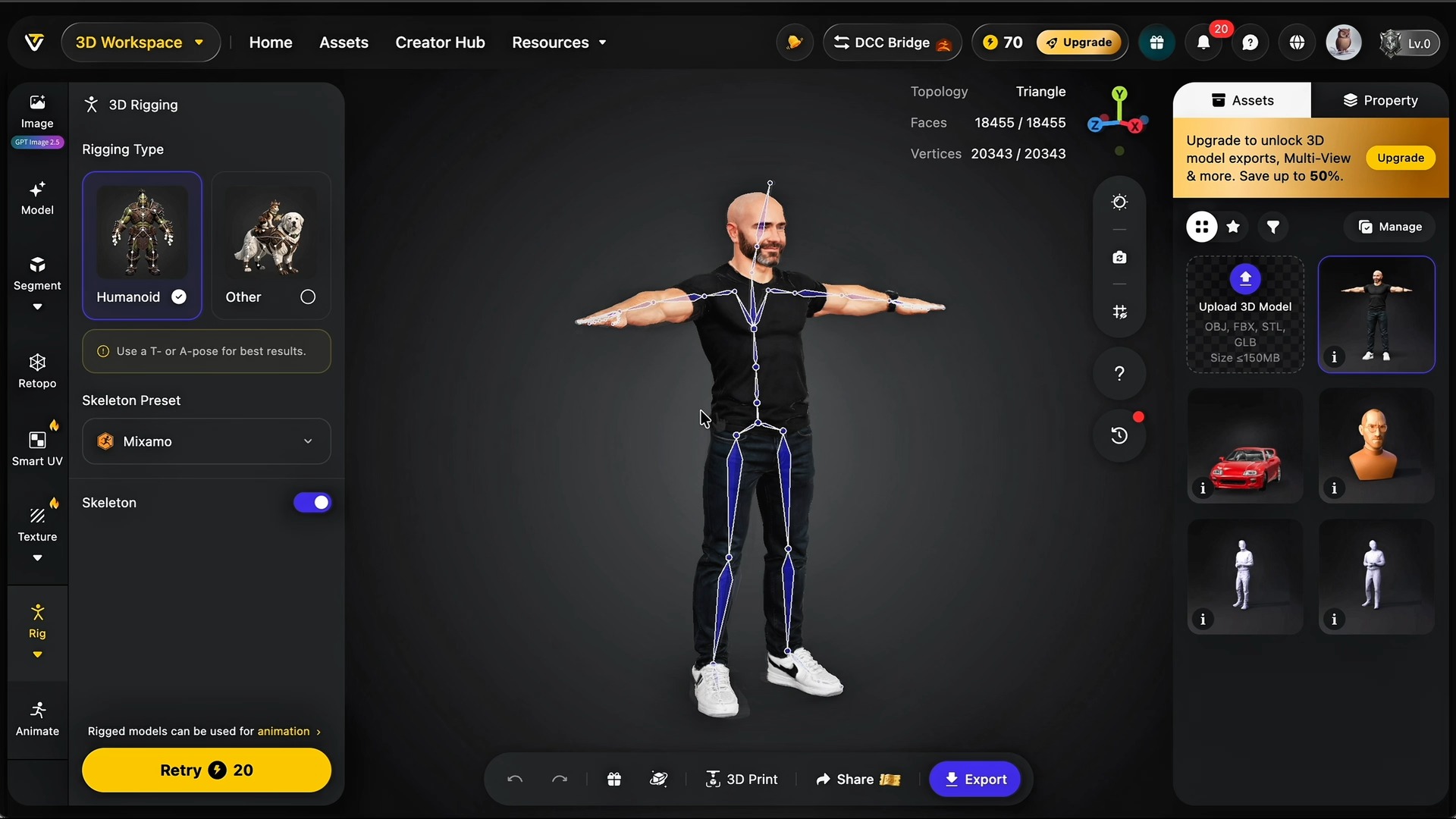
We generated a 3D character from a photo of Justin in a T-pose, added a Mixamo skeleton, and tried both the existing preset animations and the new prompt-generated motion. A five-second “make him do a disco dance” prompt produced an animation we could play on the character.
For Multi-stage Motion, we gave the character two actions — wave to the camera, then start dancing — with separate durations. Studio previewed the combined sequence on a plain mannequin before applying it to our character. We could revise the dancing prompt and generate another version within the same editor.
How to use it
Open Tripo Studio (opens in a new tab) and select a character in the 3D Workspace. These are the steps we used.
- Create or upload a character. For humanoid rigging, use a T-pose or A-pose so the arms and legs are clearly separated.
- Open Rig in the left toolbar, select Humanoid, choose a Skeleton Preset, and run Auto Rig. We used Mixamo. If your model needs a lower polygon count, use Retopo before rigging; our dense model was reduced to about 18,000 faces.
- Open Animate and choose the pencil tab under Create Your Own Animation. Enter a clear action, such as “make him do a disco dance,” set the duration, and select Generate. Find the resulting clip under AI Animation to play it on the rigged character.
- For several actions, open Multi-stage Motion. Enter the first prompt in Start and the next in Point A, then set each duration. Add Keyframe creates another stage. Generate the sequence, preview it on the mannequin, and select Apply to transfer it to your character.
If an animation card says “Rig the Model First,” complete the Rig step before applying that motion.
When you are ready to move the character into another app, open Export and choose a suitable format. Tripo recommends FBX for character animation (opens in a new tab) because it can include the skeleton, skin weights, and animation data.
Access
Tripo announced the rebuilt tools on September 30. In Tripo Studio, rigging costs 20 credits per character and animation costs 20 credits per generation.
To try the workflow, start in Tripo Studio (opens in a new tab) with a short single-action prompt, then add a second stage once the motion is working on your character.
More from Capture & Create.
Browse all stories
3D mapping · 2 min read
MultiSet Adds 3D Scan Exports for NVIDIA’s Robot Simulator
The latest update also lets devices find nearby maps automatically, combines separate survey scans, and makes mapped spaces shareable in a browser.

AI tools · 2 min read
OpenAI Teases 20+ Launches at DevDay Today
An always-on AI agent and new model access are reportedly on the way, with Sam Altman’s keynote streaming free at 10 a.m. Pacific.

Spatial AI · 2 min read
AMD to Buy World Labs for $8.2 Billion
Fei-Fei Li will become AMD’s chief scientist, bringing the team behind Marble and Atlas closer to the chips that power its research.